Some computers may already have Java installed.
To determine if Java is installed on a Windows computer, search for Java in the start menu or type the following into Command Prompt (cmd.exe):

If Java is installed, the following will appear (depending on version):

If you do not have Java installed on your computer, you can download it for free at oracle.com.
Setup for Windows
To install Java on Windows, we must:
- Navigate to the "System Properties" Advanced system settings (located in Control Panel > System and Security > System > Advanced system settings)
- Under "Advanced," select "Environment variables" from the drop-down menu.
- Then, select the "Path" variable within the System variables and click the "Edit" button.
- Click the "New" button and add the Java installation path, followed by the bin. Java is default installed in C:\Program Files\Java\jdk-11.0.1 (If nothing else was specified when you installed it). In this case, we must add the following path: C:Program FilesJavajdk-11.0.1bin
- Then, press "OK" to save the settings.
- Open Command Prompt (cmd.exe) and type java -version to determine if Java is installed on your computer.
Step-01
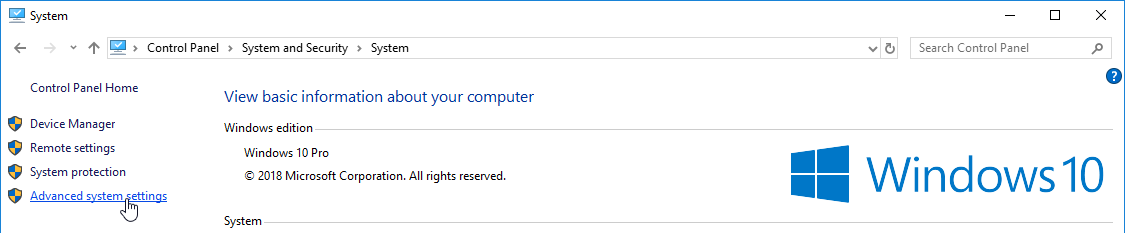
Step-02
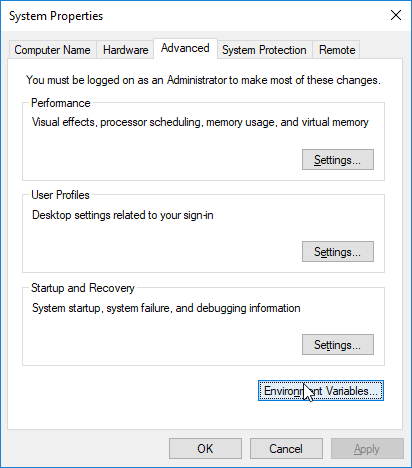
Step-03
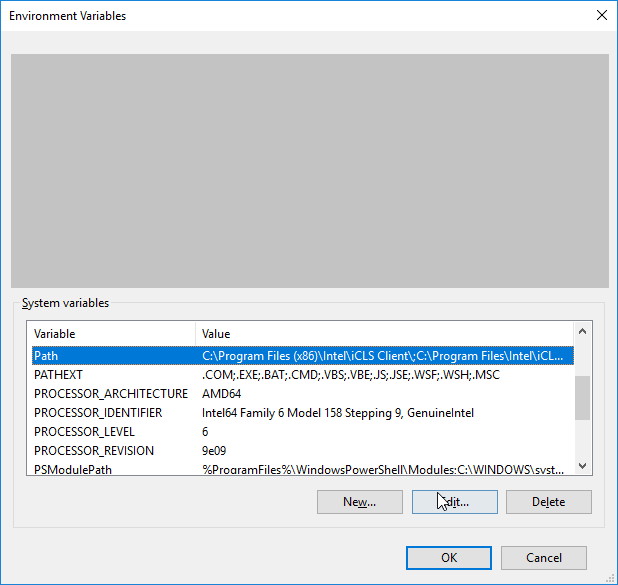
Step-04
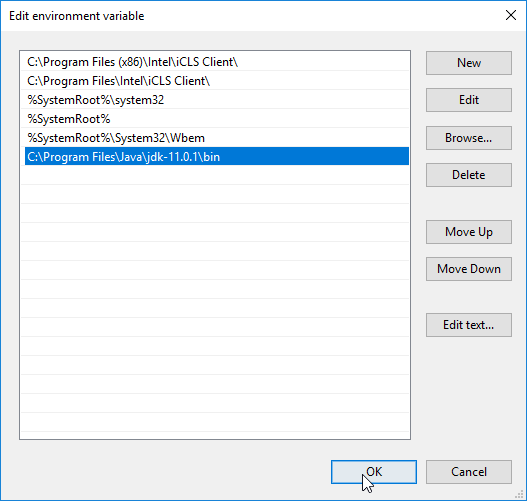
Step-05
Write the following in the command line (cmd.exe):

If Java was successfully installed, you will see something like this (depending on version):

Quickstart
Every Java application starts with a class name, which must match the filename. Let us create our first Java file, Main.java, using any text editor (like Notepad). The file must contain a "Hello, World!" message written with the following code:
public class Main {
  public static void main(String[ ] args) {
                 System.out.println("Hello World");
     }
}
Refrain from comprehending the code above; we will cover it in detail in later chapters. Focus initially on how to execute the code above. Save the code as "Main.java" in Notepad. Open Command Prompt (cmd.exe), navigate to where the file was saved, and type "javac Main.java":

This will compile your code. If there are no errors in the code, the command prompt will take you to the next line. Now, type "java Main" to run the file:

Output:
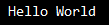
Congratulations! You have written and executed your first Java program.